
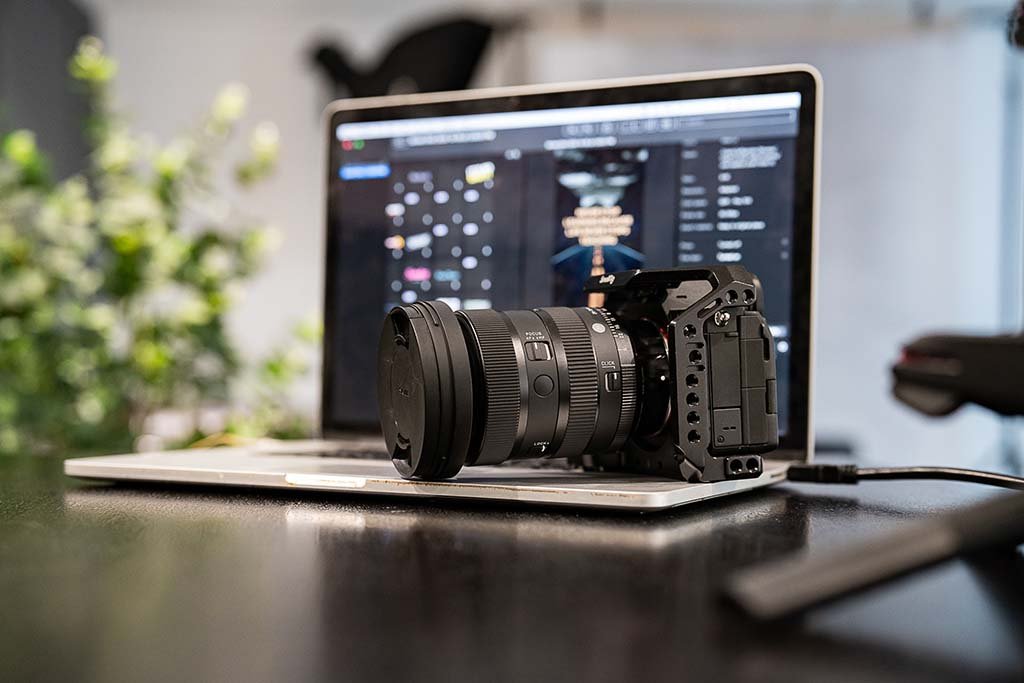
Week 6 – Introduction to Video Editing
Learn the fundamentals of video editing
Learn the fundamentals of video editing using DaVinci Resolve and CapCut - from trimming clips to adding text, color correction, and exporting finished videos.
What You’ll Learn This Week
Lesson 6 – Introduction to Video Editing
This lesson introduces you to video editing workflows using DaVinci Resolve and CapCut. You’ll learn how to organize footage, make clean edits, add text and transitions, apply basic color correction, and export videos for social media or web.
By the end of this lesson, you will understand:
How the DaVinci Resolve interface is structured
The purpose of each main workspace (Edit, Color, Deliver)
How to import and organize footage using bins
How to trim clips, cut footage, and arrange a timeline
How to add basic transitions and text titles
How to resize, reposition, and crop clips
Basic color correction using the Color Wheels
How to export videos properly for online use
How CapCut works as a beginner-friendly editor
How to auto-generate and customize captions in CapCut
Lesson 6 Downloads
These are the digital versions of the handouts you’ll receive in class. Download and save these to your computer for easy reference.
If you misplace your printed handout, this is your backup copy.
🎥 Lesson 6 Video
This is your Lesson 6 video walkthrough. Watch this before class to prepare, or revisit it afterward to reinforce what we covered in the studio.
Take notes as you watch. Don’t worry about mastering everything at once - we’ll build this skill together through hands-on practice.
Week 6 Assignment
This assignment helps you practice basic video editing skills using DaVinci Resolve or CapCut. Focus on clean cuts, simple text, basic color correction, and a smooth export.
Your goals this week are to:
Import and organize your footage into bins
Create a short timeline (20–45 seconds)
Trim clips and make clean cuts
Add at least one transition
Add one text title
Apply basic color correction (exposure, contrast, saturation)
Export your video using correct settings
(Optional) Generate auto-captions in CapCut
When your assignment file is added here, you’ll also find:
Full instructions
What to submit
How to export your files (if needed)
✅ Download the assignment below once it’s available.
Next Lesson
When you're ready, continue on to the next lesson.